Shopping Cart



How to Troubleshoot Slow Office WiFi Step by Step
Learn how to troubleshoot slow office WiFi with practical steps to identify bandwidth issues, reduce interference, optimize network performance, and improve connectivity.
By Blue Edge Team | Jun 03, 2026
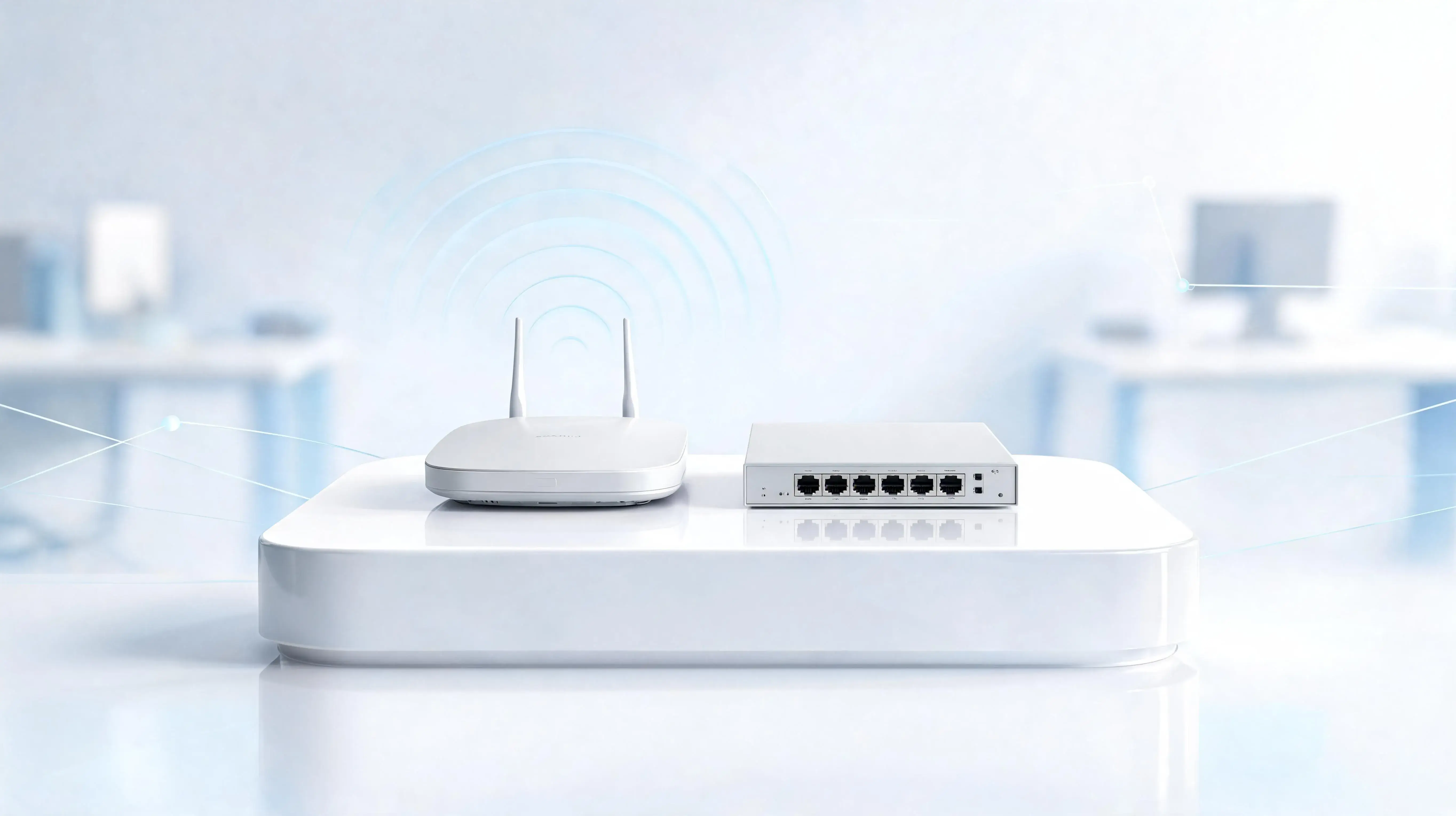
How to Troubleshoot Slow Office WiFi Step by Step
To fix slow office WiFi, restart your networking equipment, check for bandwidth-heavy applications, and identify signal interference. Next, update your router firmware and verify your network security. If issues persist, consider upgrading to an enterprise networking solution. Regular network assessments ensure continuous, high-performance connectivity for your business.
Modern businesses require secure, flexible, and high-performance communication systems. When your office WiFi underperforms, it immediately impacts productivity, disrupts video conferencing solutions, and hinders daily operations. Identifying the root cause of network latency is the first step toward restoring optimal performance.
Network issues often stem from hardware limitations, signal interference, or unauthorized bandwidth consumption. Addressing these factors systematically prevents prolonged downtime and supports a seamless workflow for your entire team.
This guide outlines a precise, point-to-point approach to troubleshoot slow office WiFi. By following these steps, you can secure your network, enhance connectivity, and ensure your infrastructure meets the highest industry standards.
Why is the office WiFi suddenly running slow?
Network latency occurs when the demand on your network exceeds its capacity or when physical barriers obstruct signal transmission. Understanding the core components of your network infrastructure allows you to pinpoint the exact point of failure.
Follow these initial diagnostic steps to isolate the issue:
- Restart your networking equipment: Power cycle your modems, routers, and access points. Disconnect the power supply for 60 seconds before reconnecting. This clears the hardware cache and resolves temporary IP conflicts.
- Run a speed test: Connect a device directly to the modem via an Ethernet cable and run a speed test. Compare this baseline speed to your WiFi speed to determine if the issue lies with your Internet Service Provider (ISP) or your internal wireless network.
- Check the router placement: Ensure your primary router or access point is positioned centrally. Physical obstructions like concrete walls, metal cabinets, and smart building technologies can degrade wireless signals.
How can you identify bandwidth hogs on the network?
High-performance communication systems require adequate bandwidth allocation. If specific devices or applications consume excessive data, the entire network slows down for everyone else.
To manage bandwidth effectively, execute the following actions:
- Audit connected devices: Access your router’s administrative dashboard to view all connected devices. Look for unrecognized devices that may be siphoning data.
- Identify high-bandwidth applications: Cloud backups, large file transfers, and continuous video streaming consume significant bandwidth. Schedule heavy data transfers outside of core business hours.
- Implement Quality of Service (QoS): Enable QoS settings on your router to prioritize critical business applications. For example, assign higher priority to IP telephony and video conferencing solutions to prevent call drops.
What are the steps to reduce WiFi interference in the office?
Wireless networks operate on specific radio frequencies, typically 2.4 GHz and 5 GHz. When multiple devices broadcast on the same frequency, signal congestion causes severe network slowdowns.
Mitigate interference using these targeted strategies:
- Switch to the 5 GHz band: The 2.4 GHz band is highly susceptible to interference from Bluetooth devices, microwaves, and neighboring networks. Move compatible enterprise networking devices to the 5 GHz band for faster, clearer connections.
- Change the wireless channel: Routers automatically select a broadcast channel, but overlapping channels cause interference. Use a WiFi analyzer tool to identify the least congested channels (typically 1, 6, or 11 for 2.4 GHz networks) and manually configure your router to use them.
- Separate guest and private networks: Create a dedicated guest network. This not only isolates visitor traffic from your main bandwidth but also enhances your cybersecurity systems by restricting access to company data.
When should you update or replace your office router?
Even the most optimized networks will fail if the underlying hardware is outdated. Every product you rely on must be tested and proven to meet modern data demands.
Evaluate your hardware using these criteria:
- Update router firmware: Manufacturers release firmware updates to patch security vulnerabilities and improve routing efficiency. Log into your router’s dashboard and apply the latest firmware updates immediately.
- Assess hardware age: If your router is more than four years old, it likely lacks support for the latest wireless protocols (such as WiFi 6). Outdated hardware cannot process the high data volumes required by modern businesses.
- Upgrade to a mesh network: For large or multi-story offices, a single router is insufficient. Implement a commercial-grade mesh network or install additional wired wireless access points (WAPs) to eliminate dead zones and ensure uniform coverage.
How do you perform a comprehensive network assessment?
Troubleshooting isolated incidents is necessary, but proactive management guarantees long-term reliability. A structured cabling infrastructure and a well-designed network architecture prevent future connectivity issues.
- Review network security: Weak passwords invite unauthorized users. Upgrade your encryption to WPA3 and enforce complex access credentials.
- Monitor physical infrastructure: Inspect Ethernet cables connecting your modem, router, and access points. Replace damaged or outdated cables (such as Cat5) with high-performance alternatives (like Cat6 or Cat6a).
- Consult IT professionals: If in-house troubleshooting does not resolve the latency, partner with technology experts to audit your entire communication system.
Elevate Your Office Connectivity Today
Reliable WiFi is the backbone of operational efficiency. By systematically power cycling equipment, managing bandwidth allocation, reducing signal interference, and maintaining up-to-date hardware, you can effectively resolve network latency.
When your business outgrows standard networking equipment, it is time to invest in enterprise-grade solutions. Upgrading your infrastructure ensures optimal performance, durability, and a secure environment for your daily operations. Evaluate your current network today and take the necessary steps to support your organization's continuous growth.
Frequently Asked Questions
-
What causes office WiFi to drop frequently?
Frequent WiFi drops are typically caused by outdated router firmware, severe channel interference from neighboring networks, or failing hardware components. Ensure your router is running the latest firmware and switch your devices to the 5 GHz band to minimize interference.
-
How much bandwidth does a small business need?
A standard office with 10 to 15 employees performing basic tasks (email, web browsing) requires at least 100 Mbps. However, if your team relies heavily on video conferencing solutions, cloud-based applications, and IP telephony, you should secure a minimum of 300 to 500 Mbps to prevent latency.
-
Is wired Ethernet better than WiFi for offices?
Yes. Wired Ethernet connections provide significantly higher speeds, lower latency, and enhanced security compared to wireless connections. Desktop computers, servers, and IP phones should always be connected via a structured cabling infrastructure for optimal stability.
-
How do I know if my network has been compromised?
Signs of a compromised network include unexplainable spikes in data usage, unrecognized devices listed in your router’s administrative panel, and sudden, severe performance degradation. Immediately change your network passwords, update your firmware, and review your cybersecurity systems if you suspect unauthorized access.