Shopping Cart


- Articles
- Enterprise Communication
- Wireless Screen Sharing for Meeting Rooms: What to Choose
Wireless Screen Sharing for Meeting Rooms: What to Choose
Cable, dongle or app? Compare wireless screen sharing options for Saudi meeting rooms, and see how the Dahua DHI-PKP-WP1B dongle pairs and presents.
By Blue Edge Team | Published Oct 13, 2026 | Updated Oct 17, 2026 | 9 min read
Quick answer
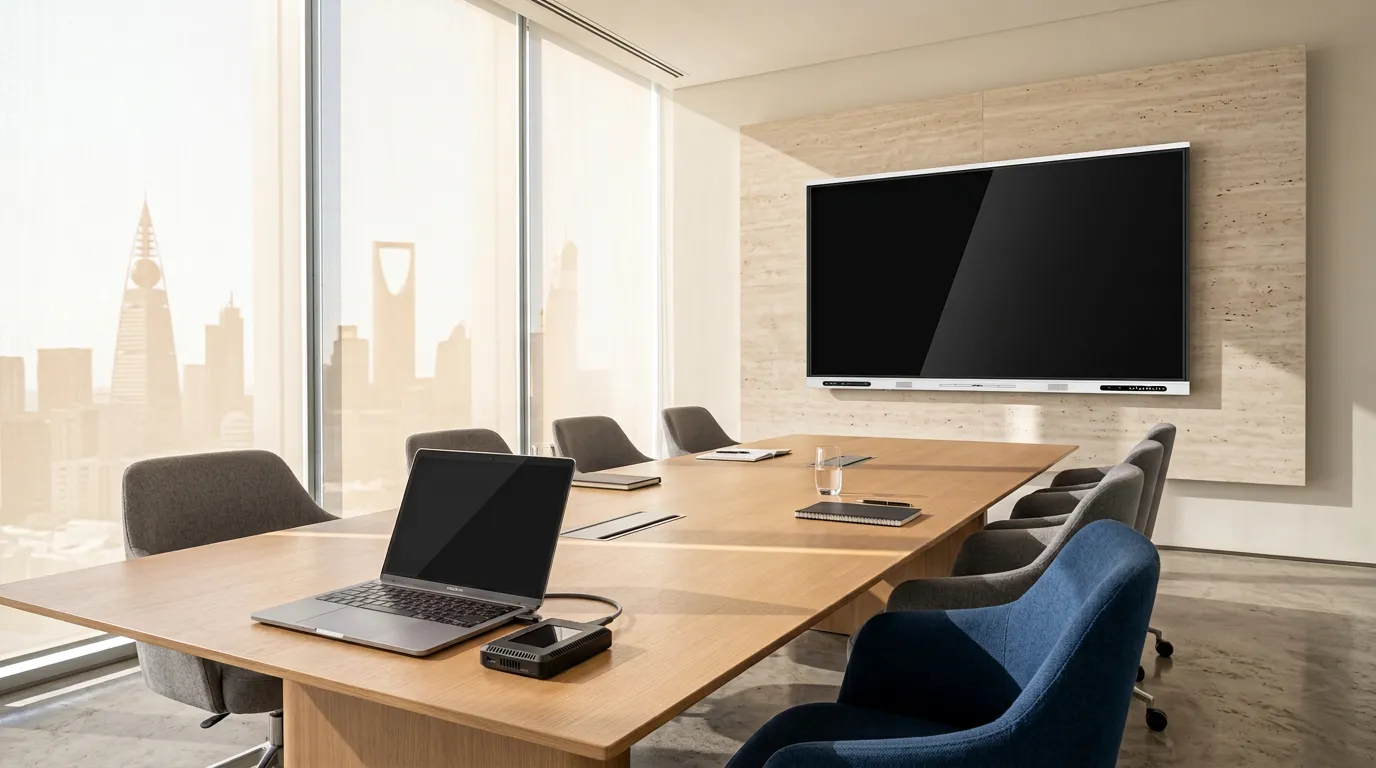
For most meeting rooms, use a wireless dongle such as the Dahua DHI-PKP-WP1B for one-press laptop sharing, a USB-C or HDMI cable for critical presentations, and the display's casting app for phones and tablets. The DHI-PKP-WP1B needs no software and shares up to 4K from up to 15 m away.
Meetings rarely start late because of the agenda. They start late because the presenter's laptop will not connect: the cable is missing, the adapter is wrong, or the casting app wants a code nobody can find. Guests have it worst, since they are not on the office network and do not have the company's apps.
Wireless screen sharing fixes most of that, but each method suits different people and devices. If you are planning the whole room, start with our guide to video conferencing for Saudi meeting rooms. This guide compares cables, dongles and casting apps, explains how Dahua's dongle pairs and presents, and covers the laptop and Wi-Fi checks that decide whether it works.
What are the ways to share a screen in a meeting room?
There are three: a cable, a wireless dongle or a casting app, and most rooms benefit from more than one. Each works differently:
- Cable: a USB-C or HDMI cable from the laptop to the display, with no pairing and no dependence on Wi-Fi.
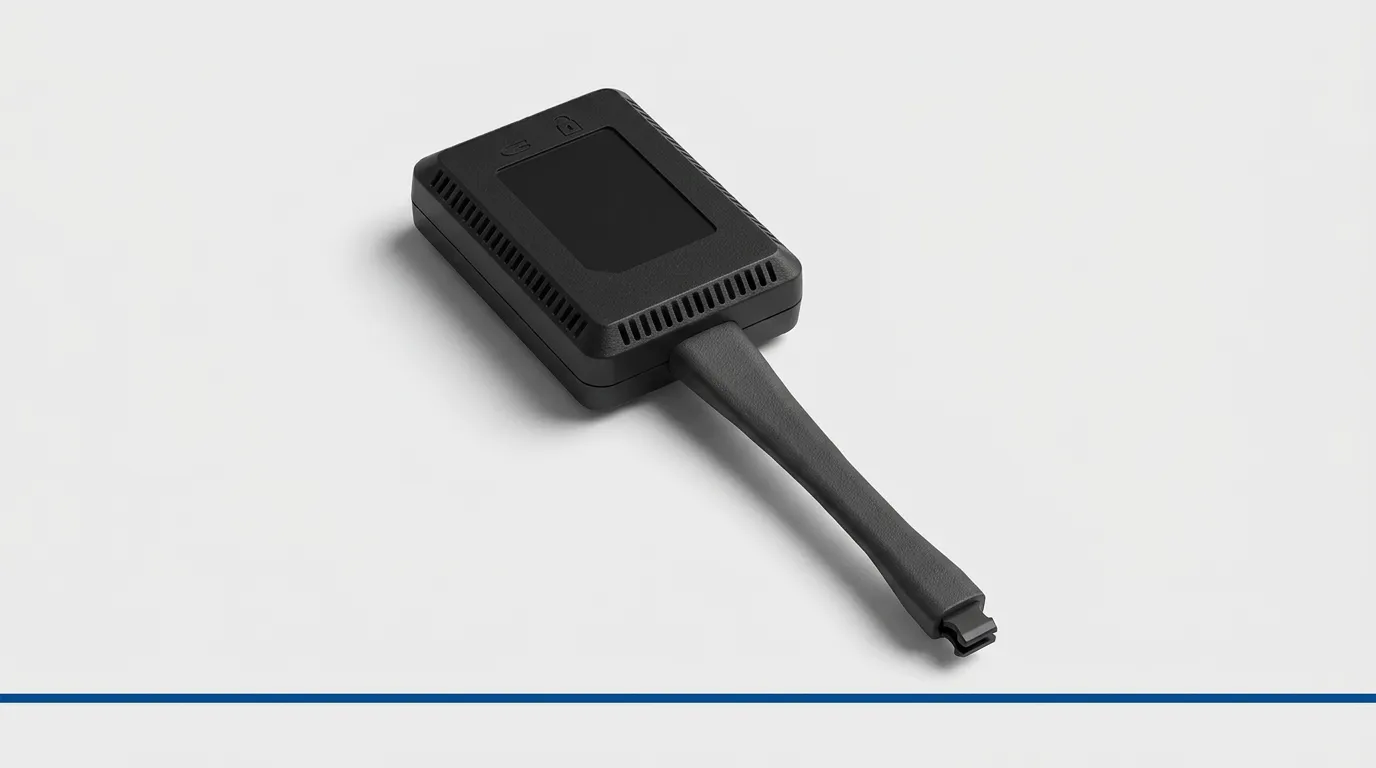
- Wireless dongle: a small transmitter plugged into the laptop that sends its screen to the display at the press of a button.
- Casting app: software on the phone, tablet or laptop that sends its screen over Wi-Fi to the display.
- Built-in display features: many interactive displays include a casting app and accept several devices at once, depending on the model.
Does the laptop need software?
Not with a dongle. Dahua describes the DHI-PKP-WP1B as plug and play, with no software or driver to install on the laptop, which is what makes dongles the easiest option for guests.
Does it use the office network?
No, in its usual set-up. The dongle pairs with the display through the display's own Wi-Fi hotspot, so presenters never join your network; where no hotspot is available, you can pair it to a Wi-Fi network instead.
How does the Dahua screen sharing dongle work?
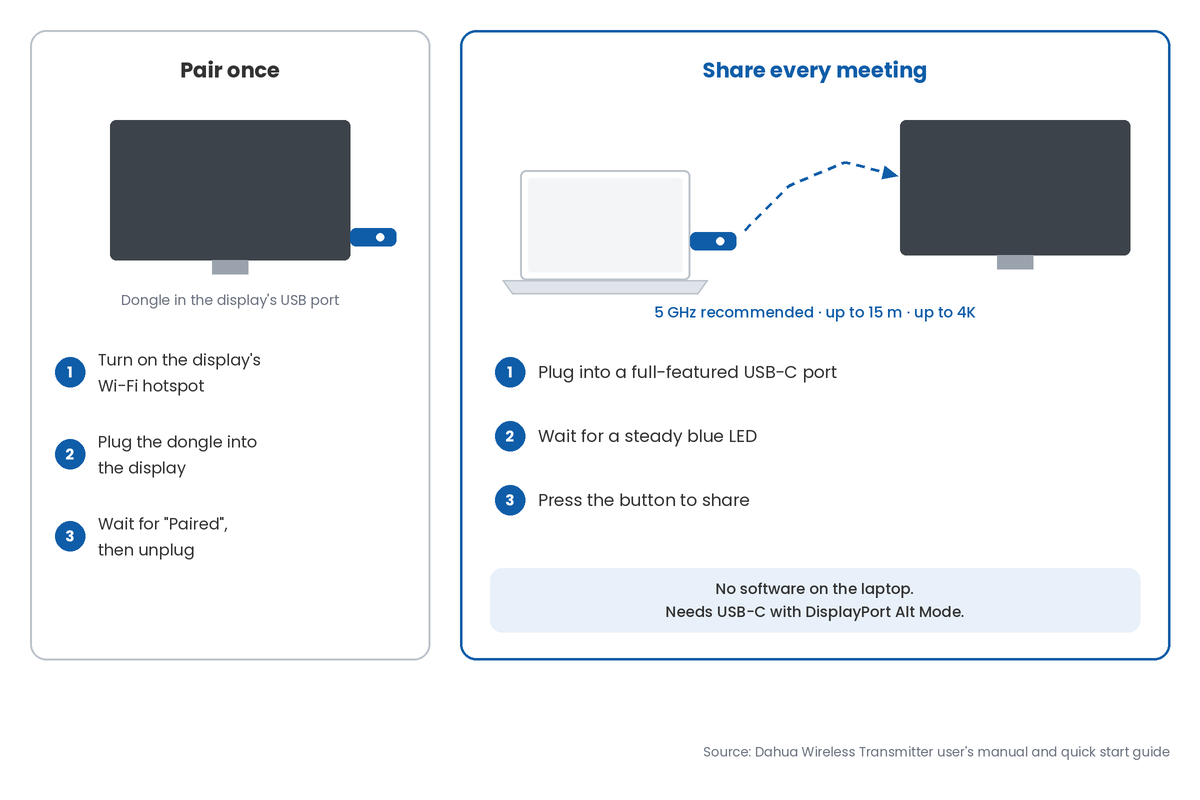
You pair the dongle with the display once, then anyone can plug it into a laptop and press its button to share. Dahua's manual sets out the steps:
- Pair once: with the display's Wi-Fi hotspot on, plug the dongle into the display's USB port, wait for the "Paired" prompt, then unplug it.
- Plug into the laptop: insert the dongle into the laptop's full-featured USB-C port and wait for its LED to change from flashing blue to steady blue.
- Press to share: press the button on the dongle and the laptop's screen appears on the display.
- Choose the mode: on Windows, press Win+P to duplicate or extend; on macOS, choose the display mode in Displays settings.
Will it work with every laptop?
No. The DHI-PKP-WP1B needs a full-featured USB-C port that carries video (DisplayPort Alt Mode), so laptops with charge-only USB-C ports, or USB-A ports only, cannot use it and need a cable instead.
Can the dongle use the room camera and microphone?
Yes, with the display's camera, microphone and speaker switched on. Dahua's manual describes selecting the dongle's camera, microphone and speaker in Zoom, Teams, Skype or Google Meet on the laptop, so the call runs through the room's equipment.
How do cable, dongle and app sharing compare?
Each method trades convenience against reliability and device support. The table compares them for a typical meeting room.
| Factor | USB-C or HDMI cable | Wireless dongle (DHI-PKP-WP1B) | Casting app |
|---|---|---|---|
| Set-up for a guest | Plug in | Plug in and press the button | Install or open an app, enter a code |
| Software on the device | None | None | App or built-in casting needed |
| Devices supported | Laptops with the right port | Laptops with full-featured USB-C | Phones, tablets and laptops |
| Picture quality | Up to the display's resolution | Up to 4K | Depends on the app and Wi-Fi |
| Depends on Wi-Fi | No | Yes, 5 GHz recommended | Yes |
| Presenter moves freely | No | Within 15 m of the display | Within Wi-Fi range |
| Best for | Critical presentations | Everyday laptop sharing and guests | Phones, tablets and quick sharing |
Key takeaway
For most rooms, a dongle covers everyday laptop sharing and guests, and a casting app covers phones and tablets. One cable stays in the room as the fallback for presentations that cannot fail.
How should guests share their screen?
With the dongle, if their laptop has a full-featured USB-C port, since it needs no software and no network access. Keep a USB-C or HDMI cable in the room for guests whose laptops cannot use it, and keep guest phones off the office network; our guide to setting up guest Wi-Fi safely covers the rest.
Which option suits which room?
Match the method to who uses the room and what they bring. These are the numbers that decide it for the DHI-PKP-WP1B:
- Distance: up to 15 m between the dongle and the display.
- Resolution: up to 3840 x 2160 (4K), at up to 60 frames per second for Full HD, depending on the environment.
- Wi-Fi: 2.4 GHz or 5 GHz, with 5 GHz recommended, and WPA2 encryption.
- Power: taken from the laptop's USB-C port, about 2.5 W on average.
- Touch: up to 10 touch points controlling the laptop back from the display.
What about phones and tablets?
Use the display's casting app rather than the dongle, since phones and tablets rarely have the full-featured USB-C ports the dongle needs. Many Dahua DeepHub models list one-tap casting from phones, tablets and computers; check the casting options on the exact model you have.
Which Wi-Fi band works best?
Use 5 GHz. Dahua's manual warns that the 2.4 GHz band is prone to interference from nearby electronics, which shows up as lag or dropouts, and recommends a 5 GHz signal for better performance.
What do Saudi offices need to consider?
Four local factors decide whether wireless sharing runs smoothly: busy Wi-Fi, mixed laptop fleets, network security and support. Generic guides rarely cover them.
Do crowded office towers affect wireless sharing?
They can. Dense office towers in Riyadh, Jeddah and the Eastern Province often have dozens of nearby networks, so keep the display's hotspot on 5 GHz and test sharing at the busiest time of day before rollout.
Will visitors' laptops support the dongle?
Not always. Contractors, consultants and government visitors bring a wide mix of laptops, and older or budget models may lack full-featured USB-C, so keep a cable and a casting app available alongside the dongle.
Does wireless sharing affect network security?
It can reduce risk. Because the dongle pairs through the display's own hotspot, guests do not need access to your network; protect the hotspot with WPA2 and keep the display itself on a separate network segment from staff devices.
What should you ask about support?
Ask who supplies replacement dongles and firmware updates in the Kingdom. Dahua publishes firmware for the transmitter, so add it to your update schedule, and keep a spare dongle for rooms that host important meetings.
Blue Edge Company, founded in 2016 and based in Dammam in the Eastern Province, is a value-added technology distributor and an authorised Dahua Technology distributor in Saudi Arabia for interactive displays and meeting-room accessories. It supplies the Dahua DHI-PKP-WP1B wireless screen sharing dongle through its Dahua whiteboard accessories range, alongside Dahua interactive displays, for projects across Saudi Arabia.
What are the most common screen sharing mistakes?
Most of them come from assuming one method suits every device. They are listed worst first.
- Removing every cable. When the Wi-Fi is congested or a laptop lacks the right port, a room with no cable leaves an important presentation with no way onto the screen.
- Ignoring the USB-C requirement. Buying dongles for a fleet of laptops with charge-only USB-C ports leaves the dongles unused and the cables back on the table.
- Leaving the hotspot on 2.4 GHz. Interference shows up as lag and dropouts in busy buildings, and users blame the display.
- Skipping the pairing step. A dongle must be paired with its display first; an unpaired one is the most common reason it "doesn't work" on day one.
- Never updating firmware. Old firmware on the display or dongle can cause pairing and compatibility problems that an update would have avoided.
Decide the mix for each room, then pair and test
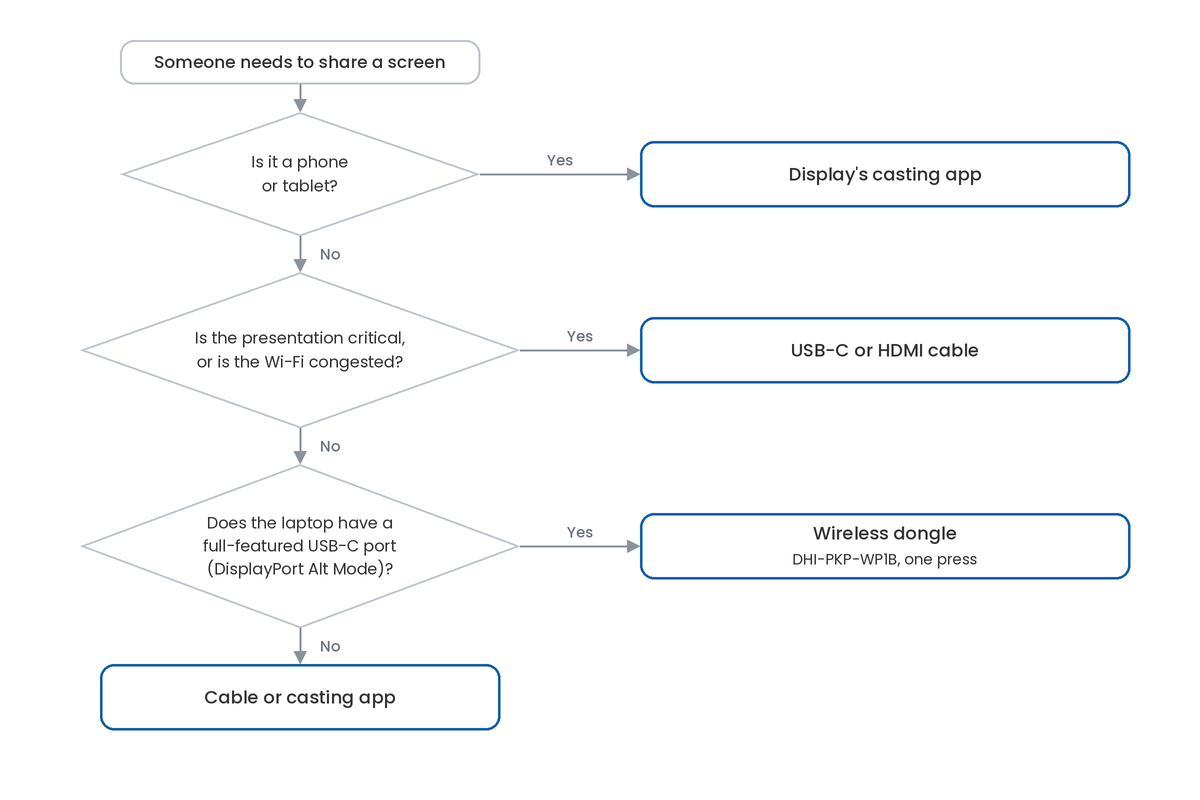
List who uses each room and what they bring: staff laptops, visitor laptops, phones and tablets. Give every room a dongle for laptops, the display's casting app for phones and tablets, and one cable as the fallback.
Then check your laptop fleet for full-featured USB-C ports, set each display's hotspot to 5 GHz, and pair each dongle to its display. Label each dongle with its room, so it goes back to the right screen.
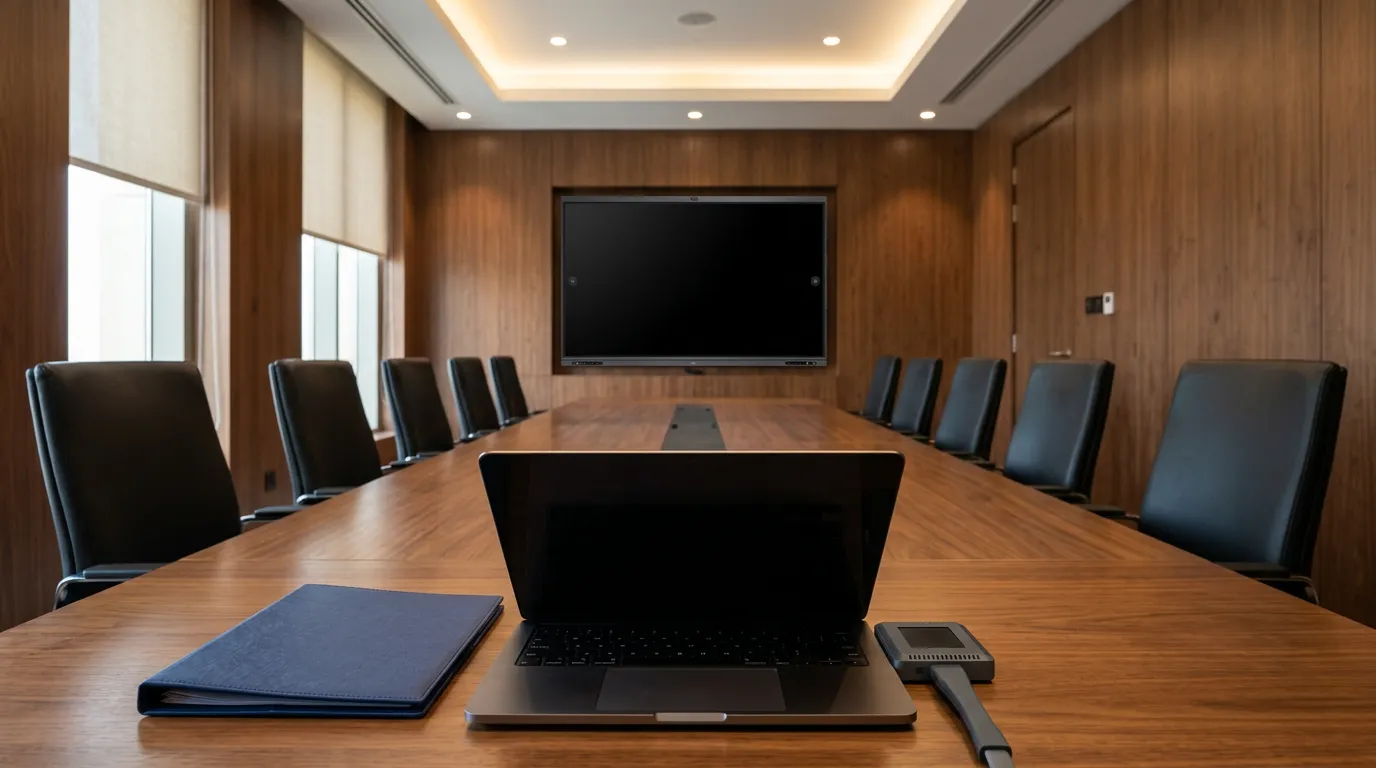
Finally, test a full presentation and a video call from a visitor's laptop before handover. Our guide to how interactive touch screens work covers the display features the dongle relies on.
Key Takeaways
- Most rooms need a mix: a dongle for laptops, a cable for critical presentations and a casting app for phones and tablets.
- The Dahua DHI-PKP-WP1B shares a laptop screen with one button press and needs no software on the laptop.
- It needs a full-featured USB-C port with DisplayPort Alt Mode; charge-only USB-C ports will not work.
- It pairs with the display, through the display's Wi-Fi hotspot or a network you enter, rather than with each laptop.
- Use 5 GHz Wi-Fi where possible, since 2.4 GHz is more prone to interference.
- Keep one cable in the room as a fallback for presentations that cannot fail.
Frequently Asked Questions
-
How do you pair the Dahua screen sharing dongle?
Turn on the display's Wi-Fi hotspot, plug the dongle into the display's USB port and wait for the "Paired" prompt, then unplug it. If the display has no hotspot, open its screen sharing app, plug the dongle in and enter a Wi-Fi network name and password when prompted. Pairing is done once per dongle.
-
Why is wireless sharing lagging?
Usually because of Wi-Fi interference or distance. Move the display's hotspot to 5 GHz, which Dahua recommends over 2.4 GHz, keep the laptop within 15 m of the display, and avoid metal cabinets between them. For fast-moving video, a cable will always be smoother than any wireless link.
-
Does the dongle work with MacBooks?
Yes, if the MacBook has a full-featured USB-C port, which most recent models do. Dahua lists macOS among the supported systems, and after pressing the button you choose mirroring or a separate display in the Mac's Displays settings. Test it once with each model your staff use.
-
Should I duplicate or extend the screen?
Duplicate when the audience should see exactly what you see, such as a demo. Extend when you want speaker notes or other windows on the laptop while the display shows only the presentation. On Windows, press Win+P to switch; on macOS, change it in Displays settings.
-
Does the dongle need its own power supply?
No. It draws power from the laptop's USB-C port, about 2.5 W on average, so there is no adapter or battery to charge. That also means it only works while plugged into a laptop port that supplies power and video together.
Sources & References
- Dahua — Wireless Transmitter User's Manual V1.0.2, hosted on the Blue Edge product page vendor documentation
- Dahua — Wireless Transmitter Quick Start Guide V2.0, hosted on the Blue Edge product page vendor documentation
- Dahua — DHI-PKP-WP1B datasheet, hosted on the Blue Edge product page vendor documentation
Making screen sharing easier in your meeting rooms?
Blue Edge supplies the Dahua DHI-PKP-WP1B wireless screen sharing dongle with Dahua DeepHub interactive displays for projects across Saudi Arabia.
Call or WhatsApp +966 53 9855 188, contact the Blue Edge team, or see the screen sharing dongle.
About Blue Edge
Blue Edge Company is a value-added technology distributor based in Dammam, Saudi Arabia, supplying interactive displays, smart building systems, networking infrastructure and IT security software to businesses and residential projects across the Kingdom, with installation and technical support.
Learn more about Blue Edge →Published 13 October 2026 • Last updated 17 October 2026 • This article is reviewed when standards, regulations or product guidance change.